What is Claude Code
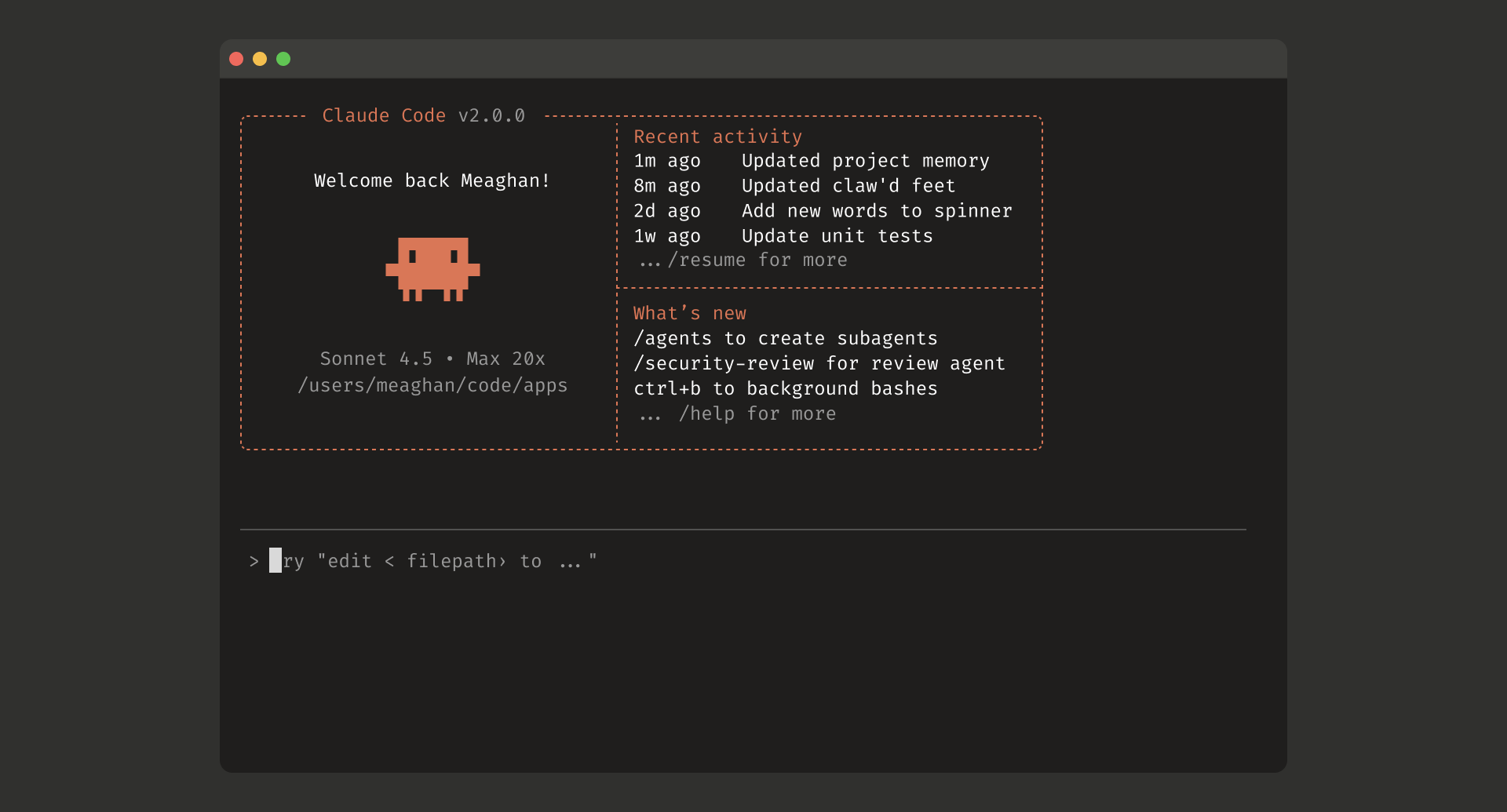
Claude Code is an AI-powered coding tool made by Anthropic (the company behind Claude). Think of it as a smart coding partner that sits right inside your terminal or code editor: you tell it what you want in plain English, and it writes code, edits files, runs tests, and even creates pull requests for you.
What makes Claude Code different from tools like GitHub Copilot or Cursor is that it works as a full agent. It doesn't just autocomplete one line at a time: it can plan out an entire feature, write code across multiple files, test it, fix errors, and iterate until the job is done. All while keeping you in the loop for approvals.
If you're interested in how Claude's AI capabilities extend beyond coding into everyday knowledge work, check out our guide on Claude Cowork.
Where Can You Use Claude Code
Claude Code isn't limited to just one place. You can use it in:
- Your terminal: the classic command-line interface
- VS Code: as an extension right in your editor
- JetBrains IDEs: IntelliJ, PyCharm, WebStorm, and more
- Desktop app: a standalone app for Mac and Windows
- Your browser: at claude.ai/code, no installation needed
What You Need Before Installing
Before you get started, here's what you'll need:
- A computer running macOS 13 or later, Windows 10 or later, or a modern Linux distribution (Ubuntu 20.04+, Debian 10+)
- 4GB of RAM or more
- An internet connection
- A paid Claude subscription: Claude Code is not available on the free plan. You'll need one of these:
| Plan | Price | Best for |
|---|---|---|
| Claude Pro | $20/month | Individual developers getting started |
| Claude Max | $100 to $200/month | Heavy daily usage |
| Claude Teams | $150/person/month | Development teams |
| Claude Enterprise | Custom pricing | Large organizations |
If you're on Windows, you'll also need Git for Windows installed first.
How to Install Claude Code
Option 1: The One-Line Installer (Recommended)
This is the simplest way. It installs Claude Code and sets up automatic updates so you always have the latest version.
On a Mac or Linux, open your terminal and paste:
curl -fsSL https://claude.ai/install.sh | bash
On Windows, open PowerShell (search for "PowerShell" in the Start menu) and paste:
irm https://claude.ai/install.ps1 | iex
That's it. The installer handles everything.
Option 2: Homebrew (Mac Only)
If you already use Homebrew (a popular Mac package manager), you can install with:
brew install --cask claude-code
Option 3: WinGet (Windows Only)
If you prefer WinGet on Windows:
winget install Anthropic.ClaudeCode
Verify It Worked
After installation, check that everything is set up correctly:
claude --version
You should see a version number printed. You can also run claude doctor to check for any issues with your setup.
Your First Session
Step 1: Open a Project
In your terminal, navigate to any project folder you want to work on:
cd ~/my-project
Step 2: Start Claude Code
Simply type:
claude
The first time you run this, a browser window will open asking you to log in with your Claude account. Once you've logged in, your credentials are saved locally: you won't need to log in again.
Step 3: Start Talking
Now you can type your request in plain English. Try something like:
- "What does this project do?"
- "Fix the bug in the login page"
- "Add a dark mode toggle"
- "Write tests for the user service"
Claude reads your entire project automatically: you don't need to manually select or upload files. It understands the structure, finds the relevant code, and makes the changes.
Key Features
It Writes Real Code, Not Just Suggestions
Claude Code does not just suggest, it acts. It reads files, writes code, runs your tests, checks the results, and iterates until the task is done. Ask it to "add authentication to this API" and it'll create the middleware, update routes, write tests, and commit, checking in with you for approvals along the way.
It Understands Your Entire Codebase
No need to copy-paste code or point it at specific files. Ask "how does the payment flow work?" and it traces through all the relevant files to give you an accurate answer.
CLAUDE.md: Give It Persistent Instructions
Create a file called CLAUDE.md in your project root to tell Claude about your project's conventions, build commands, architecture, or anything else it should know. Claude reads this file at the start of every session, so it always has the context it needs.
Auto-Memory
Claude Code remembers things across sessions. It saves useful context it learns (like build commands, debugging insights, and your preferences) and recalls them automatically next time. You can manage this with the /memory command.
Connects to Your Tools (MCP)
Through the Model Context Protocol (MCP), Claude Code can connect to external tools and services: query databases, manage GitHub issues, read Slack messages, access Figma designs, and more. There are 200+ integrations available.
Plan Mode: Review Before Acting
Type /plan to have Claude lay out its approach before touching any code. Review the plan, adjust it, and only then let it implement. Great for complex tasks where you want to stay in control.
Using Claude Code in Your Editor
VS Code Extension
If you prefer working in VS Code instead of the terminal:
- Open VS Code
- Go to Extensions (
Cmd+Shift+Xon Mac,Ctrl+Shift+Xon Windows) - Search for "Claude Code"
- Click Install
You get inline diff viewing (see exactly what Claude wants to change), @-mention files, conversation tabs, and the ability to rewind changes if something goes wrong.
JetBrains Plugin (IntelliJ, PyCharm, WebStorm)
If you use a JetBrains IDE:
- Open your IDE
- Go to Settings > Plugins > Marketplace
- Search for "Claude Code Beta"
- Click Install and restart
Quick launch with Cmd+Esc (Mac) or Ctrl+Esc (Windows). Install the JetBrains plugin
Desktop App
If you want a standalone app (no terminal or IDE needed):
- Download from the official site: macOS or Windows
- Install and open it
- Select a folder to work in and start chatting
Web: No Installation Needed
Don't want to install anything? Go to claude.ai/code in your browser. You get the same Claude Code capabilities without any local setup. Great for running long tasks without tying up your computer.
Essential Commands Cheat Sheet
Starting Sessions
| What you want to do | Command |
|---|---|
| Start a new session | claude |
| Start with a task | claude "add a search bar" |
| Quick one-off question | claude -p "what does this function do?" |
| Continue last session | claude -c |
| Resume an older session | claude -r |
| Update Claude Code | claude update |
Inside a Session
| What you want to do | Command |
|---|---|
| Get help | /help |
| Manage memory | /memory |
| Review plan before coding | /plan |
| Manage tool connections | /mcp |
| See usage and costs | /cost |
| Clear conversation | /clear |
| Change AI effort level | /effort |
Tips for Getting the Most Out of Claude Code
- Be specific in your prompts. "Add a search bar to the header that filters products by name" works better than "add search."
- Use CLAUDE.md to document your project conventions. Claude will follow them consistently.
- Start with
/planfor big tasks. Review the approach before Claude starts writing code. - Trust but verify. Claude is very capable, but always review the diffs before committing.
- Use
claude -cto continue where you left off. Context carries over between sessions.
Related Reading
If Claude Code handles the developer side, Claude Cowork is its counterpart for everyday knowledge work: organizing files, building spreadsheets, creating presentations, and automating tasks, all without writing a single line of code.
Resources
- Official Documentation: The complete guide to Claude Code
- Quickstart Guide: Get up and running in minutes
- VS Code Extension: Install for VS Code
- JetBrains Plugin: Install for IntelliJ, PyCharm, WebStorm
- Desktop App Download: Standalone app for Mac and Windows
- MCP Server Directory: Browse 200+ tool integrations
- Claude Code Changelog: Latest updates and releases
- Claude Pricing: Plan details and pricing
- How Anthropic Teams Use Claude Code: Real-world usage from the creators
- Anthropic Blog: Announcements and deep dives